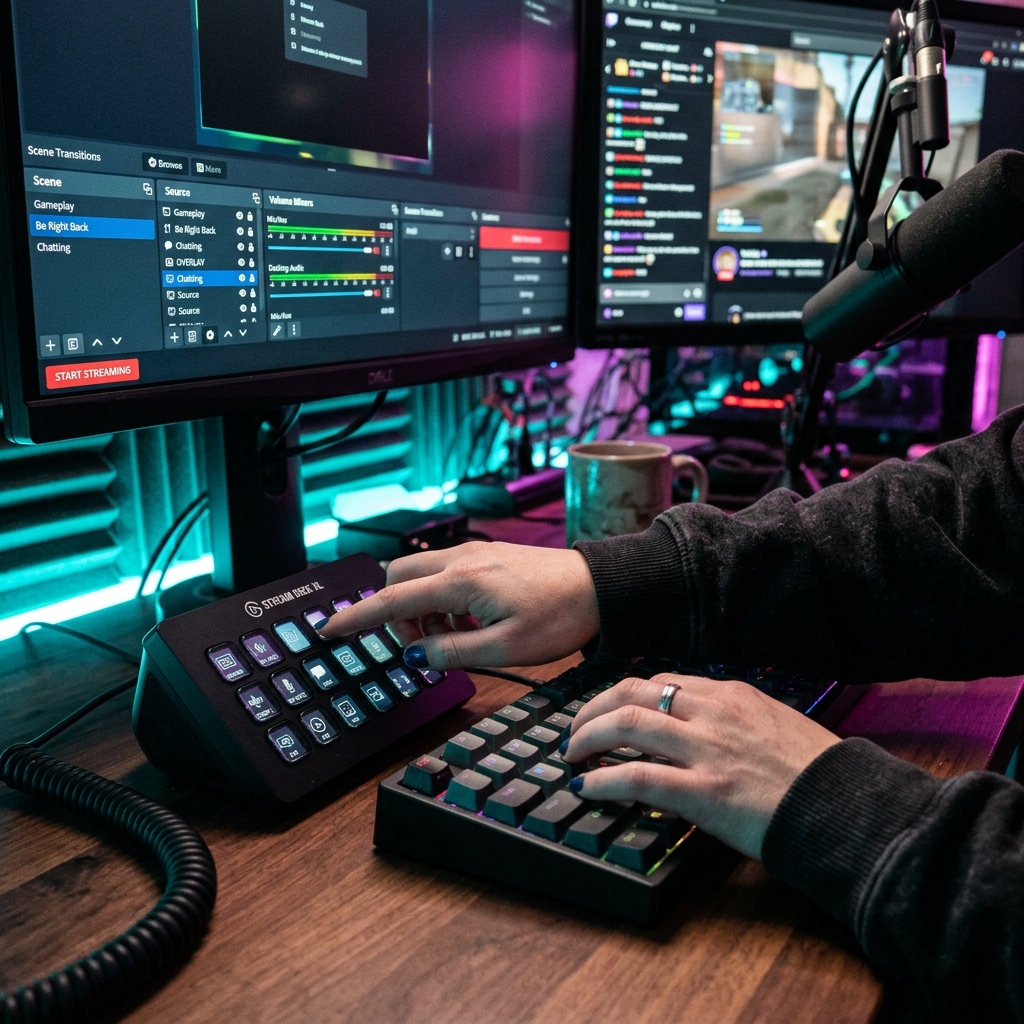
Professional Audio Setup Guide for Live Streamers: From Mic to OBS
From choosing the right mic and dialing in OBS filters to simple room acoustics—here is the complete guide to achieving crystal-clear, professional live stream audio on any budget.

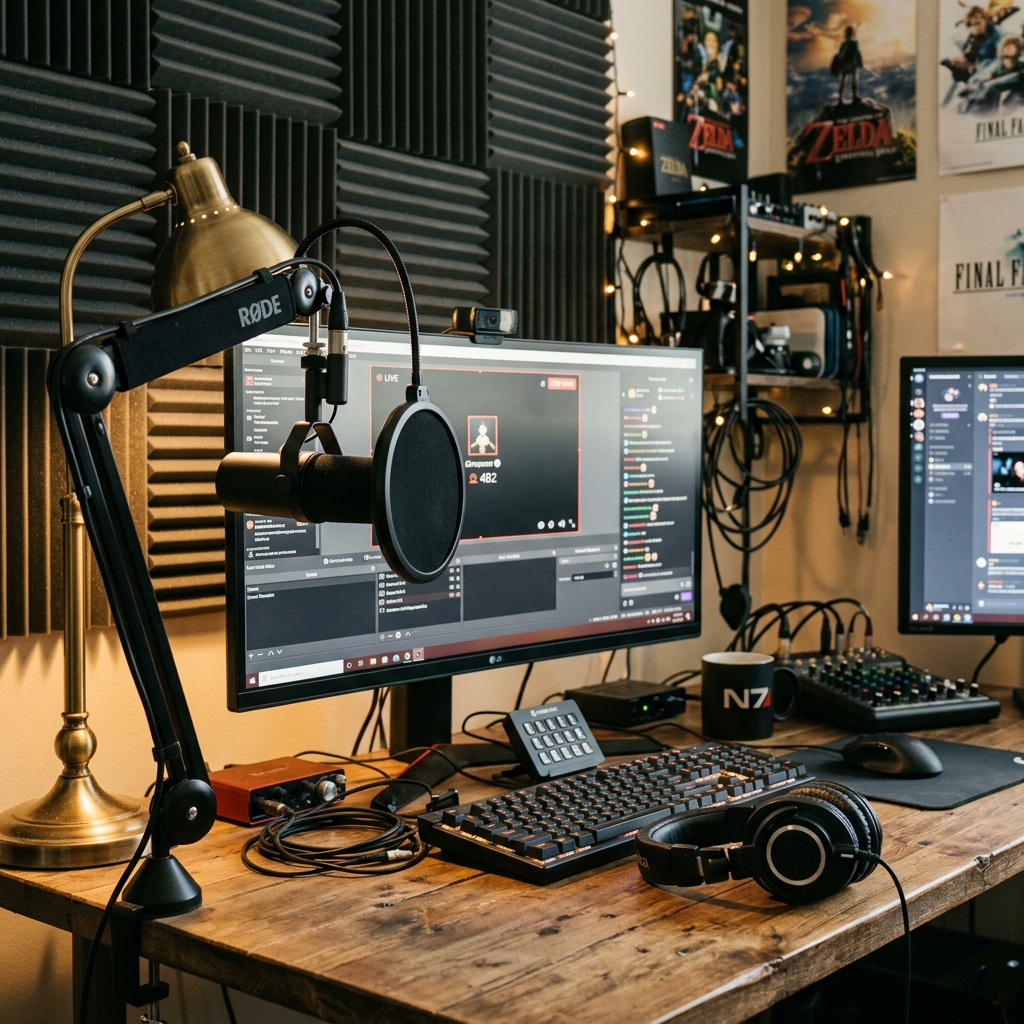
Your voice is the single most powerful tool for viewer retention during a live stream. Many new streamers obsess over video quality but overlook their audio. In reality, viewers will tolerate slightly grainy video, but muffled sound, harsh fan noise, or distorted audio will drive them away in seconds. The longer viewers stay engaged, the more your Superchat BD tips and community support grow. In this step-by-step guide, we will explore how to pick the right mic for your budget, set it up properly, and dial in OBS filters to achieve crisp, professional audio.
Why Audio Matters More Than Video
Live streaming is fundamentally about conversation—whether it's gaming commentary, answering viewer questions, or hosting a talk show. Your real connection with the audience is forged through sound. If your audio is muddy, viewers have to strain to listen—and people won’t stick around for that. Within a minute, they’ll scroll away to another stream.
There’s another critical factor at play: trust. Viewers are far more likely to send tips when a creator comes across as professional. Warm, clear, and articulate sound makes an immediate professional first impression. Great audio doesn’t just keep viewers watching; it drives tangible support.
Choosing the Right Mic for Your Budget
You don't need an expensive high-end studio setup to get pristine audio. Based on the market, audio gear generally falls into three main tiers.
Budget Options: ৳1,000–৳2,500
The most practical starting point. A lapel (lavalier) or collar-style microphone placed close to your mouth will sound significantly better than your laptop’s built-in mic. If you stream from a mobile device, a TRRS lavalier mic works straight out of the box. For beginners, this is more than enough.
Mid-Range: ৳2,500–৳6,000
This tier brings you into USB microphone territory—brands like Fifine, Boya, and similar alternatives are widely available. They are plug-and-play, require no separate audio interface, and can be selected directly inside OBS Studio. Word of caution: cheap BM-800 style "studio kits" flooding the market often sound terrible without phantom power—always check trusted reviews before buying.
Professional Tier: ৳6,000+
Here you enter the world of XLR dynamic microphones paired with audio interfaces. Dynamic mics are exceptionally effective in noisy environments because they reject off-axis background noise far better. If you have ceiling fans running, traffic honking outside, or a TV blaring in the next room, a dynamic mic will reject most of it and focus primarily on your voice. While condenser mics deliver a richer "studio-like" air, they also pick up every stray room sound. In an untreated room, a dynamic mic is your best friend.
Essential Microphone Setup Rules
Buying an expensive mic won't automatically fix your audio—poor positioning can make even a ৳20,000 microphone sound terrible. Follow these core guidelines:
- Distance: Keep the mic 15–20 cm away from your mouth. Too close causes harsh "plosives" and breathing noise; too far picks up ambient room echo.
- Off-Axis Angle: Instead of pointing the mic directly at your mouth, angle it slightly to the side. This dramatically reduces harsh breath puffs and "pop" sounds.
- Pop Filter: A modest foam windscreen or mesh pop filter works wonders in smoothing out plosive consonants.
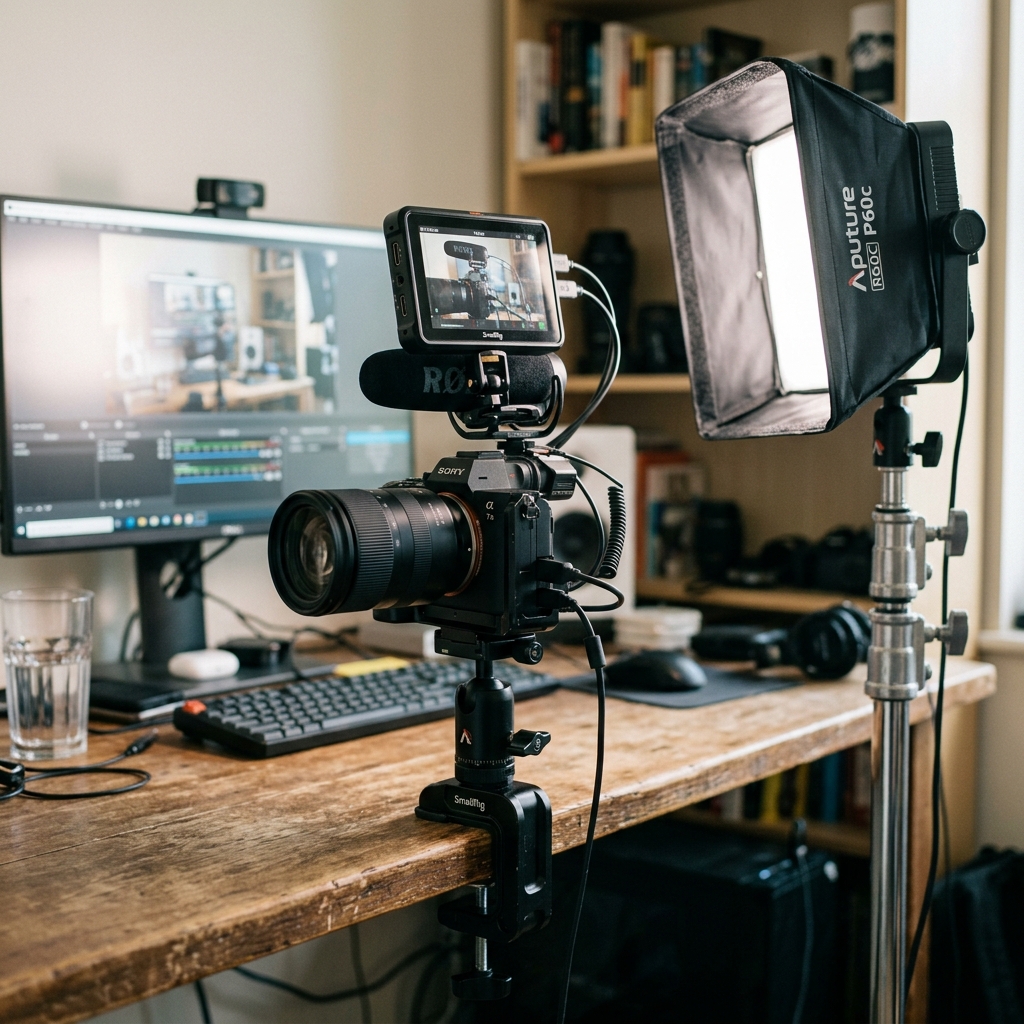
- Boom Arm & Shock Mount: Placing a mic directly on your desk captures every keyboard tap, desk bump, and mouse click. Mounting it on a boom arm isolates and absorbs these physical vibrations.
- Headphones: Always monitor your audio using headphones, never desk speakers. Speaker sound will bleed back into the mic and generate nasty echoes.
OBS Audio Filters: Free Professional Sound
OBS Studio’s built-in audio filters are some of its most powerful and underrated features. Right-click your microphone source, select Filters, and apply these essentials:
- Noise Suppression: Select the RNNoise method. It utilizes AI to eliminate fan hums and computer whines effortlessly—no third-party plugins needed; it’s built right into OBS Studio.
- Noise Gate: Automatically mutes the mic when you aren’t speaking. Start with a Close Threshold around -45dB and tune it according to your speaking volume.
- Compressor: Keeps sudden gaming screams from blowing out your viewers' ears by leveling out peak audio spikes. A 4:1 ratio and -18dB threshold provide a solid baseline.
- Gain: Use this to fine-tune your final output volume. In the OBS mixer, aim for your voice peaks to bounce comfortably between -12dB and -6dB—never clipping into the red zone.
Filter order matters: arrange them as Noise Suppression → Noise Gate → Compressor → Gain to get the cleanest signal processing chain.
Low-Cost Ways to Improve Room Acoustics
Professional acoustic foam can be expensive, but smart household hacks work wonders in untreated rooms:
- Hang heavy blankets or rugs on bare walls to minimize room echo and flutter slap.
- Wardrobes filled with clothes, bookshelves, or extra bedding behind your camera act as natural, effective sound absorbers.
- If turning off your ceiling fan isn't an option, move the fan behind the microphone's pickup pattern and run it on a lower speed setting.
- Keep windows and doors closed—street horns, bicycle bells, and outdoor noise sneak into sensitive microphones surprisingly easily.
The 5-Minute Pre-Stream Audio Checklist
- Record a quick 20-second test clip and review it with headphones to spot fan noise, hums, or reverb.
- Verify that your voice peaks comfortably between -12dB and -6dB in the OBS audio mixer.
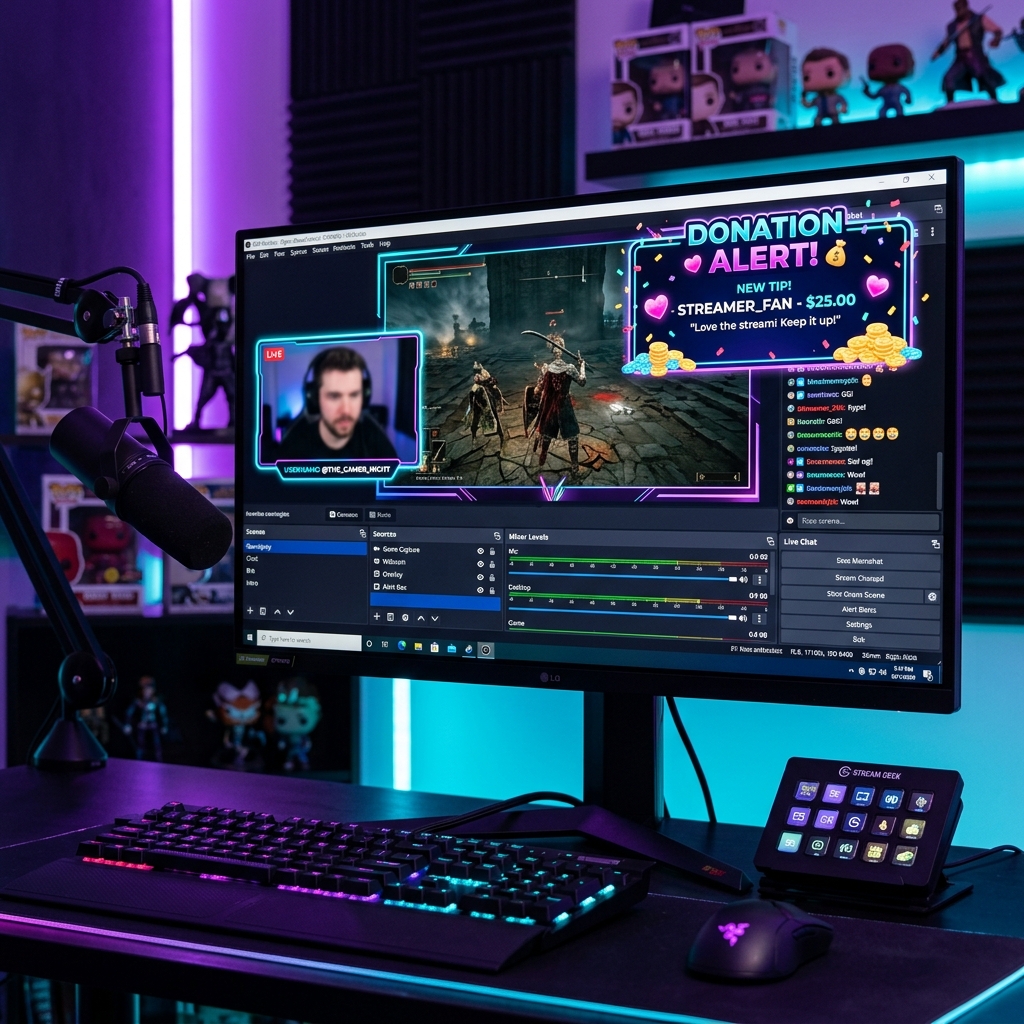
- Test your tip alert sounds on stream—make sure alert audio and your voice maintain a clean, balanced volume when a Superchat BD donation comes in.
- Keep background music volume significantly lower than your speaking voice.
- Split game audio and microphone onto separate audio tracks in OBS Studio for effortless post-stream clipping and editing.
Running through this quick routine before hitting "Go Live" guarantees you won't suffer from the dreaded "why did my audio sound great yesterday but terrible today?" dilemma.
Great Audio = More Viewers, More Support
Streaming is a marathon. Viewers return day after day for your companionship and personality—meaning your audio is quite literally your brand. Whether you focus on quick short-form highlights or long gaming sessions, pristine audio directly drives higher viewer retention and generous community tips. The right mic, optimal placement, and OBS Studio's free filters are all you need to elevate your stream to a professional tier today. Once your setup is dialed in, keep your creator profile active on Superchat BD so viewers who love your stream can instantly send their support.
Can you get great audio without an expensive mic?
Absolutely. A ৳1,500 lavalier mic paired with OBS Studio's RNNoise suppression and proper mic positioning can yield results surprisingly close to high-end setups. Master your placement and filters first before spending heavily on microphone upgrades.
What is the most effective OBS setting to eliminate background noise?
Start by enabling Noise Suppression (RNNoise), then configure a Noise Gate to silence ambient sound during silent pauses. When combined, ceiling fan noise practically disappears. If noise persists, adjust your mic's angle and bring it closer to your mouth while lowering gain.
How can I get good audio when streaming from mobile?
Built-in mobile phone microphones capture excessive ambient room noise. Using an external TRRS lavalier mic or a USB-C audio interface instantly improves quality. Clip the mic securely to your chest to keep your voice loud, clear, and isolated from background noise.
How do I reduce ceiling fan noise during a stream?
Take these three steps: position your mic so its back faces the fan (null zone), turn on OBS RNNoise suppression, and lower your microphone gain while keeping the mic closer to your mouth. Combining these three makes fan hum almost completely inaudible.