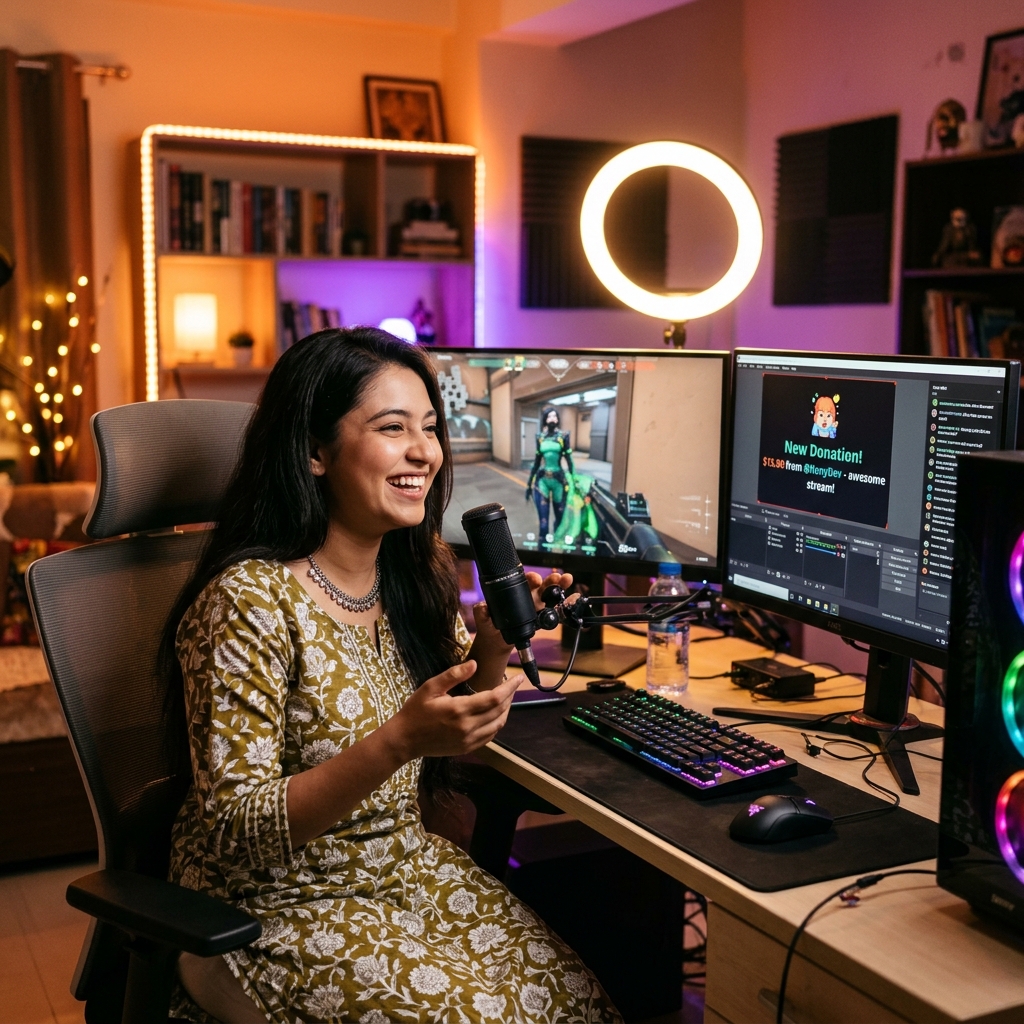
Multistreaming Guide: How to Stream to Facebook and YouTube Simultaneously
Stream to Facebook and YouTube at the same time with a single setup—master OBS multistream configuration, mobile methods, internet settings, and practical strategies to grow your audience.

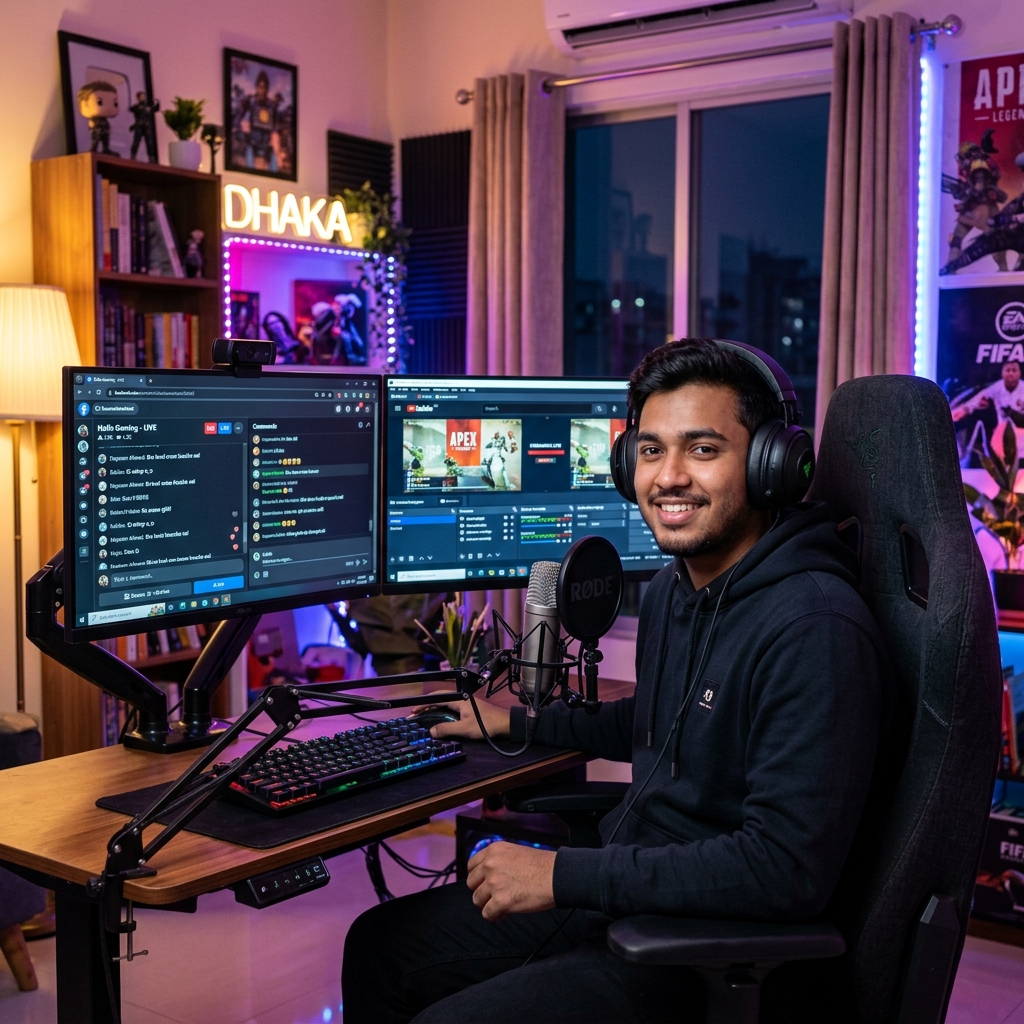
What Is Multistreaming and Why It Matters for Bangladeshi Streamers
Multistreaming means broadcasting live to multiple platforms at the exact same time—such as streaming your gameplay or chat session simultaneously to both Facebook and YouTube. Previously, streamers were forced to choose just one platform, but that limitation is gone. With a single stream setup, you can now reach audiences across both ecosystems.
In Bangladesh's creator landscape, multistreaming is exceptionally powerful. Facebook boasts a massive casual audience—people scrolling their feeds who casually drop into your live session. Meanwhile, YouTube offers search-driven, long-term discoverability—a solid livestream recording can continue pulling in views for months. By being present on both platforms at once, new streamers can practically double their growth velocity; even if reach dips on one platform on any given day, viewers on the other platform keep the momentum alive.
However, let's keep one reality clear: multistreaming doesn't automatically mean 2x the viewers overnight. Rather, it offers 2x the opportunities. Capitalizing on that potential requires the right setup, optimal internet configurations, and a solid strategy to manage both audiences simultaneously. This guide covers every single step you need to master.
What You Need to Start Multistreaming
You don't need an elaborate rig. You can get started with your existing streaming setup—just make sure you have the following essentials in place.
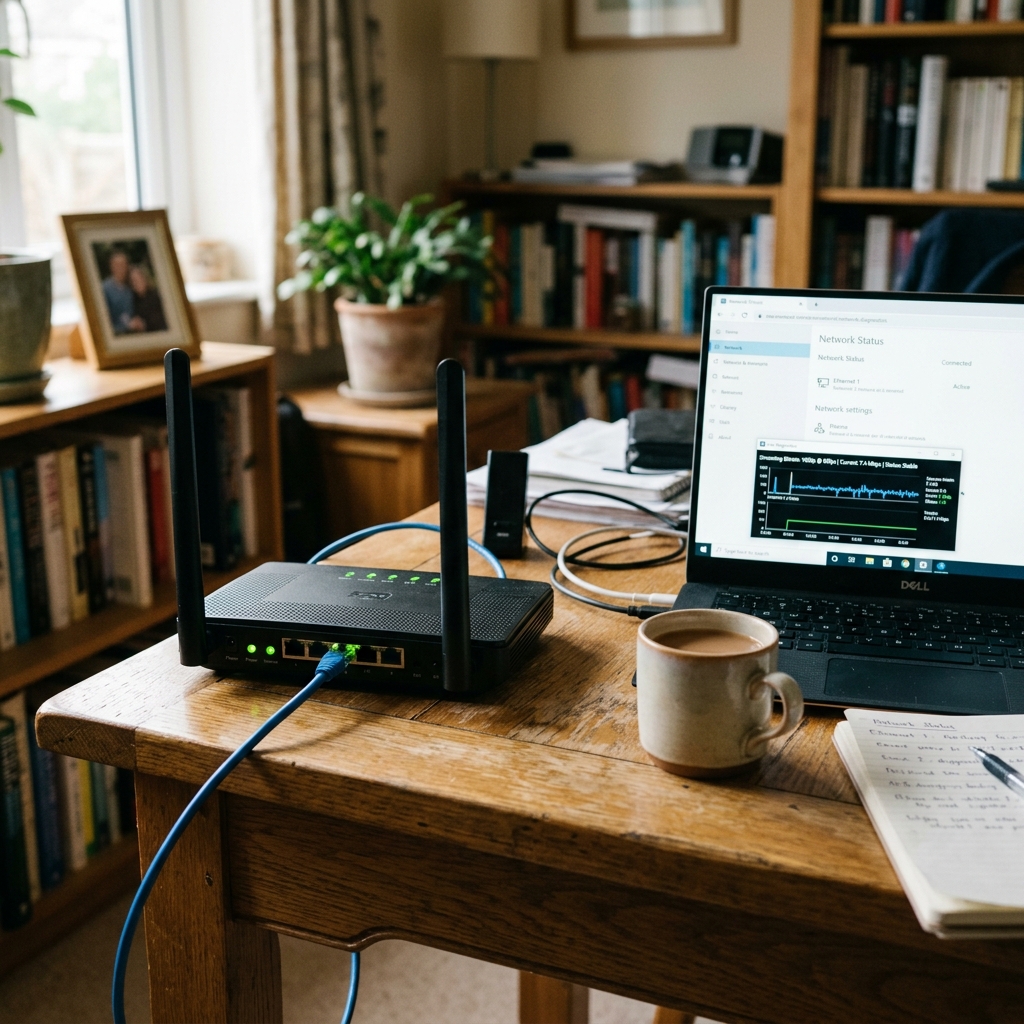
- A Stable Internet Connection: Multistreaming increases your upload bandwidth requirements. For dual 720p streams, you need at least 12–15 Mbps of stable upload speed. Test your connection on Speedtest; if your ping fluctuates heavily, stabilize your connection before going live.
- A Decent PC or Smartphone: To run OBS Studio on a PC, an 8GB RAM system with a quad-core processor is sufficient. Use a hardware encoder (NVENC or AMF) to significantly reduce CPU encoding stress.
- Ready Accounts on Both Platforms: Ensure live streaming permissions are active on your Facebook page or profile and your YouTube channel. Note that brand-new YouTube channels require up to 24 hours for live verification—so activate it beforehand.
- A Multistreaming Method: Either the OBS Studio Multiple Outputs feature or a dedicated multistreaming service like Restream, Streamlabs, or Prism.
Method 1: Direct Multistreaming via OBS Studio (Free & Best)
Modern versions of OBS Studio allow you to push your stream to multiple destinations simultaneously. This eliminates the need for third-party subscription services, cuts out extra costs, and delivers lower latency since your stream feeds directly into each platform.
Step 1: Update OBS Studio
Install the latest version of OBS Studio, as older builds may lack multi-output capabilities. Head to Settings → Output and select a hardware encoder (NVENC H.264 or AMD HW H.264) to relieve your CPU of unnecessary encoding load.
Step 2: Add Your Primary Platform (Facebook)
In Settings → Stream, choose Facebook Live as your service. Connect your Facebook account or manually input your Stream Key. If streaming from a Facebook Page, grab your stream key from the Page's Live Producer. Start with a resolution of 1280x720 and a bitrate of 4500–6000 kbps.
Step 3: Add YouTube to Your Secondary Output
Enable OBS Studio's Multiple RTMP Outputs feature (available via the Docks menu or plugin) and configure YouTube as your secondary destination. Copy your Stream Key from the YouTube Studio Stream dashboard and paste it in. Both outputs will use the exact same scene—meaning you only need to design your overlays once to maintain a consistent look across both feeds.
Step 4: Run a Test Stream
Never jump straight into a public broadcast. Set your Facebook privacy to "Only Me" and your YouTube visibility to "Unlisted," then run a 5–10 minute test stream. Verify audio-video sync, check for lag, and ensure chats connect seamlessly. Once everything checks out, launch your public stream.
Method 2: Multistreaming from Mobile
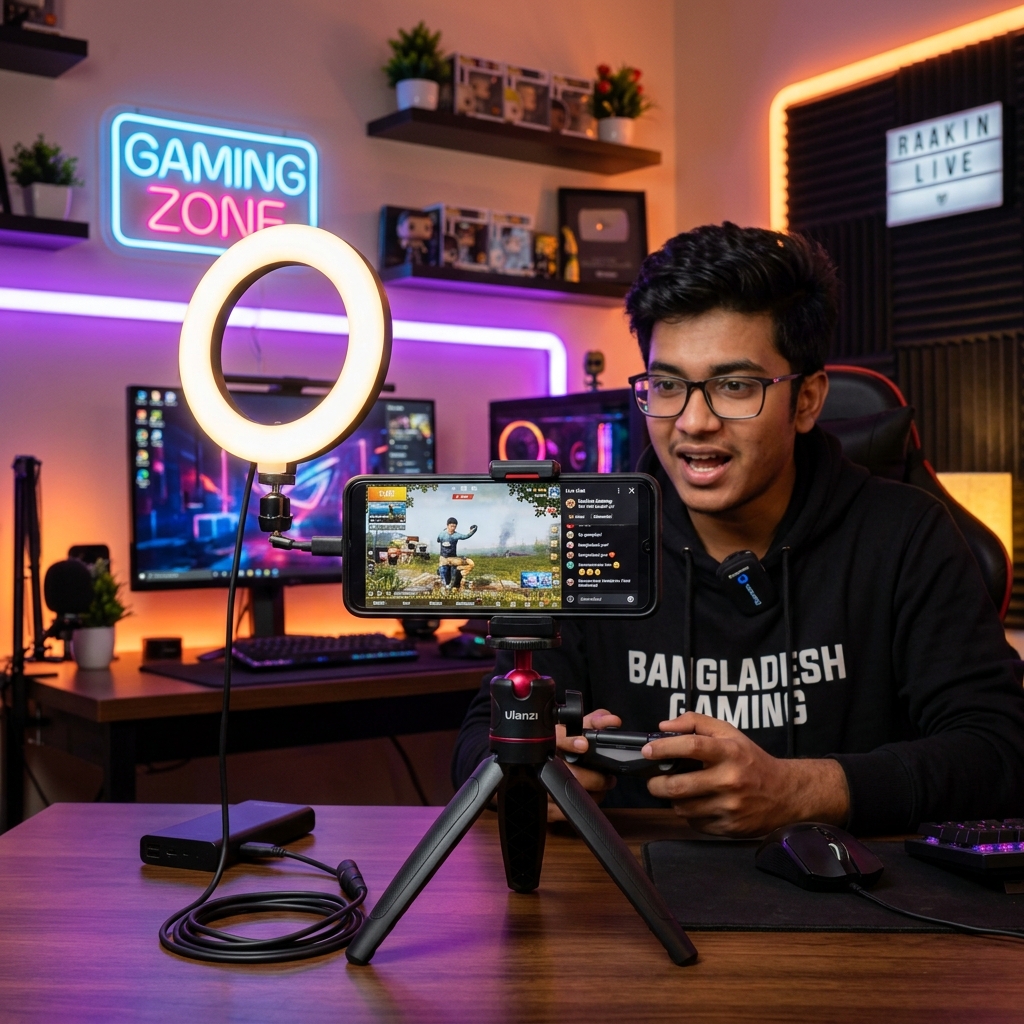
Don't have a PC? No problem. With mobile apps like Prism Live Studio or Streamlabs Mobile, you can stream to both platforms simultaneously right from your smartphone. Simply log into both your Facebook and YouTube accounts inside the app, enable multistreaming, configure your title and thumbnail, and hit Go Live.
Keep a few mobile-specific factors in mind: thermal throttling causes frame drops when phones overheat. Keep your device cool, close unnecessary background apps, and stream over Wi-Fi whenever possible. Multistreaming over cellular data will consume your data allowance rapidly, so avoid marathon streams unless you have an unlimited high-speed package.
Strategies for Managing Audiences on Both Platforms
Getting your technical setup right is only half the battle. The real challenge lies in handling two chats and two distinct audiences simultaneously—this is where most beginner streamers slip up.
- Consolidate Both Chats on One Screen: Use tools like Restream Chat or the Streamlabs chat overlay to view both Facebook and YouTube comments in a single unified window. This ensures you never miss a message.
- Never Neglect Either Platform: If you only interact with Facebook comments and ignore YouTube viewers, they will quickly leave. Periodically shout out both communities—acknowledging "friends tuning in from YouTube" alongside "the Facebook family" makes all viewers feel included.
- Unify Your Support in One Place: Sharing different donation or support links across different platforms confuses viewers. Place a single, unified tipping link like Superchat BD in your stream title and pinned comments—regardless of where your audience watches from, all viewer support pools into one dashboard via bKash, Nagad, and Rocket.
- Synchronize Your Narrative: Keep stream titles and schedules aligned across both platforms so viewers understand they are part of the same unified live event. During high-energy highlight moments, monitor reactions from both chats simultaneously.
Crucial Precautions: Platform Policies & Technical Guidelines
Certain monetization programs enforce exclusivity clauses—if you are under a dedicated creator agreement or partner contract, simultaneous broadcasting elsewhere may be restricted. While standard Facebook and YouTube livestreams have no such restrictions, always review your terms if you participate in exclusive partner programs or sponsored brand deals.
From a technical standpoint, remember that direct multistreaming doubles your upload bandwidth demand. If your internet struggles, scale down to 720p on one platform and 480p on the other rather than tolerating dropped frames. A laggy stream repels viewers on both platforms. Finally, take a quick 2-minute break every hour during long broadcasts—it keeps your energy fresh and your viewers engaged.
Final Thoughts: One Stream, Double the Opportunity
Multistreaming is one of the smartest growth strategies available for modern live streamers. With the same amount of effort, you build a presence across two major ecosystems, connect with two distinct viewer demographics, and accelerate follower growth—precisely what early-stage creators need. Run a test multistream via OBS Studio or your mobile app today, fine-tune your settings, and launch your next broadcast on both platforms simultaneously. To turn viewer appreciation into sustainable income, set up your creator profile on Superchat BD and pin your tipping link across both streams.
Frequently Asked Questions
Does live streaming to Facebook and YouTube simultaneously violate any platform policies?
Generally, no. Standard live broadcasts on Facebook and YouTube do not prohibit multistreaming. However, if you are enrolled in an exclusive partner program, a paid brand contract, or specific platform-exclusive monetization tier, review your terms for exclusivity clauses.
What internet speed is required for multistreaming?
A stable upload speed of at least 12–15 Mbps is recommended for dual 720p broadcasts. If your network connection is weaker, reduce your bitrate to 480p or stream in HD on one platform and SD on the other to avoid frame drops.
Can I multistream from mobile for free?
Yes. Applications like Prism Live Studio allow dual-platform multistreaming on their free tiers. However, free tiers may feature watermarks or resolution caps—upgrading to a premium plan is worthwhile if you stream consistently.
How can I collect tips from both platforms in one place?
Instead of relying on fragmented platform-specific tipping systems, use a unified tipping link. Create a creator profile on Superchat BD and place your link in the stream description and pinned comments across both channels—ensuring all viewer support is collected into one single wallet.