Mobile Live Streaming: The Complete Professional Setup Guide
Launch professional-quality live streams right from your smartphone. Learn how to configure apps, stream mobile games, optimize audio and lighting, and monetize your content.

Introduction: Your Phone is Now Your Studio
You no longer need an expensive PC or bulky setup to start live streaming. Thousands of aspiring creators across Bangladesh are now going live regularly on Facebook, YouTube, and TikTok using just their smartphones—streaming gameplay, singing songs, or hosting casual chat sessions. The great news is that with the right streaming app and a few simple adjustments, your mobile stream can look and sound genuinely professional.
In this guide, we'll walk you through step-by-step: how to set up professional-grade live streams using just a smartphone, optimize your workflow for mobile game streaming, enhance audio and video quality, and monetize your streams effectively.
Why Choose Mobile Live Streaming?
In the context of Bangladesh, streaming from a phone offers distinct advantages. First, the entry cost is virtually zero—the smartphone is already in your hand. Second, setup takes just minutes; you can go live right from your bedroom, on your rooftop, or even on the go outdoors. Third, viral games like Free Fire and PUBG Mobile are natively played on mobile, making smartphones the natural choice for mobile gamers.
However, keep one critical rule in mind: viewers might overlook a modest background, but they will never tolerate poor audio or buffering video. That's why this guide places top priority on audio clarity and network stability.
What You Need: Basic Equipment Checklist
- A Decent Smartphone — 4 GB or more RAM with a reliable camera is plenty to start. For game streaming, a Snapdragon 6-series processor or equivalent works best.
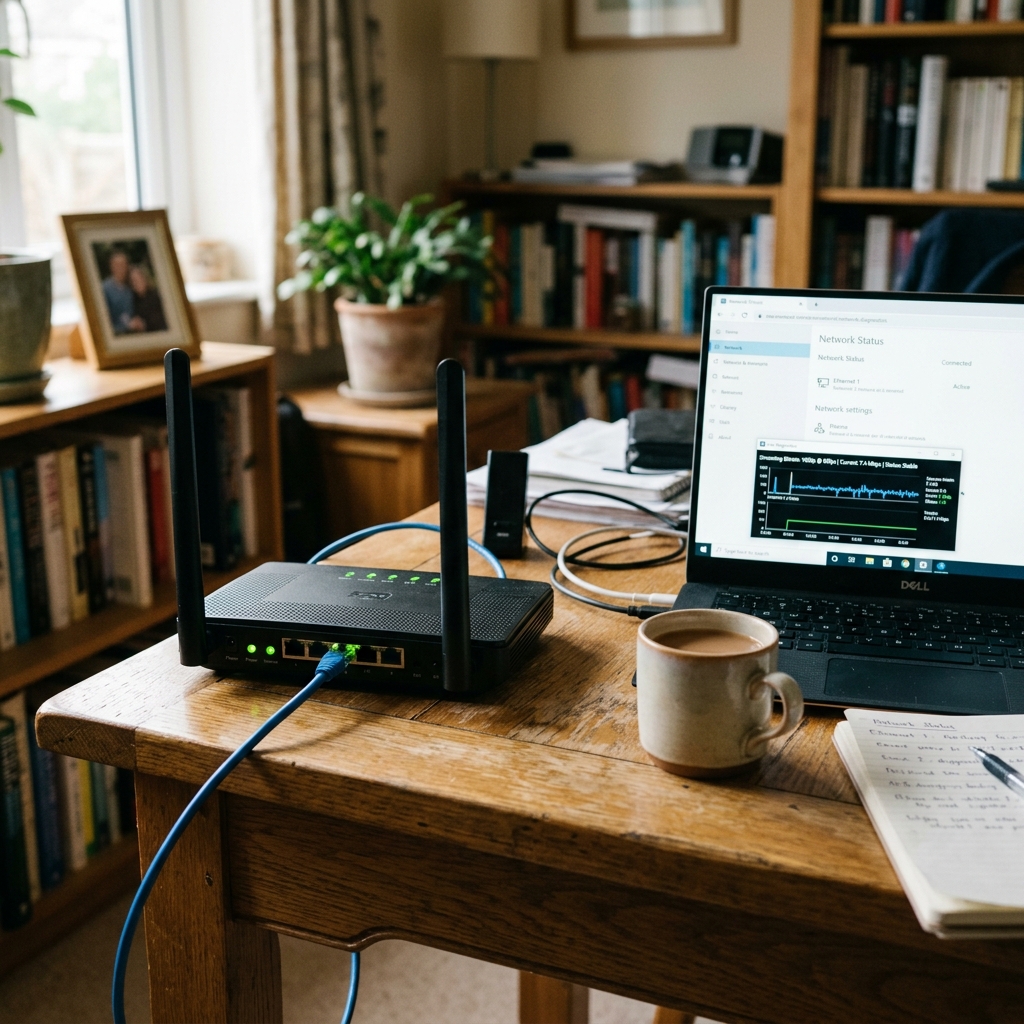
- Stable Internet Connection — A minimum upload speed of 10 Mbps is ideal. If you're on Wi-Fi, stay close to your router; if on mobile data, ensure a solid 4G signal.
- Earphones or a Budget Microphone — Built-in smartphone mics pick up distant background noise, including ceiling fans. A basic wired earphone microphone performs significantly better.
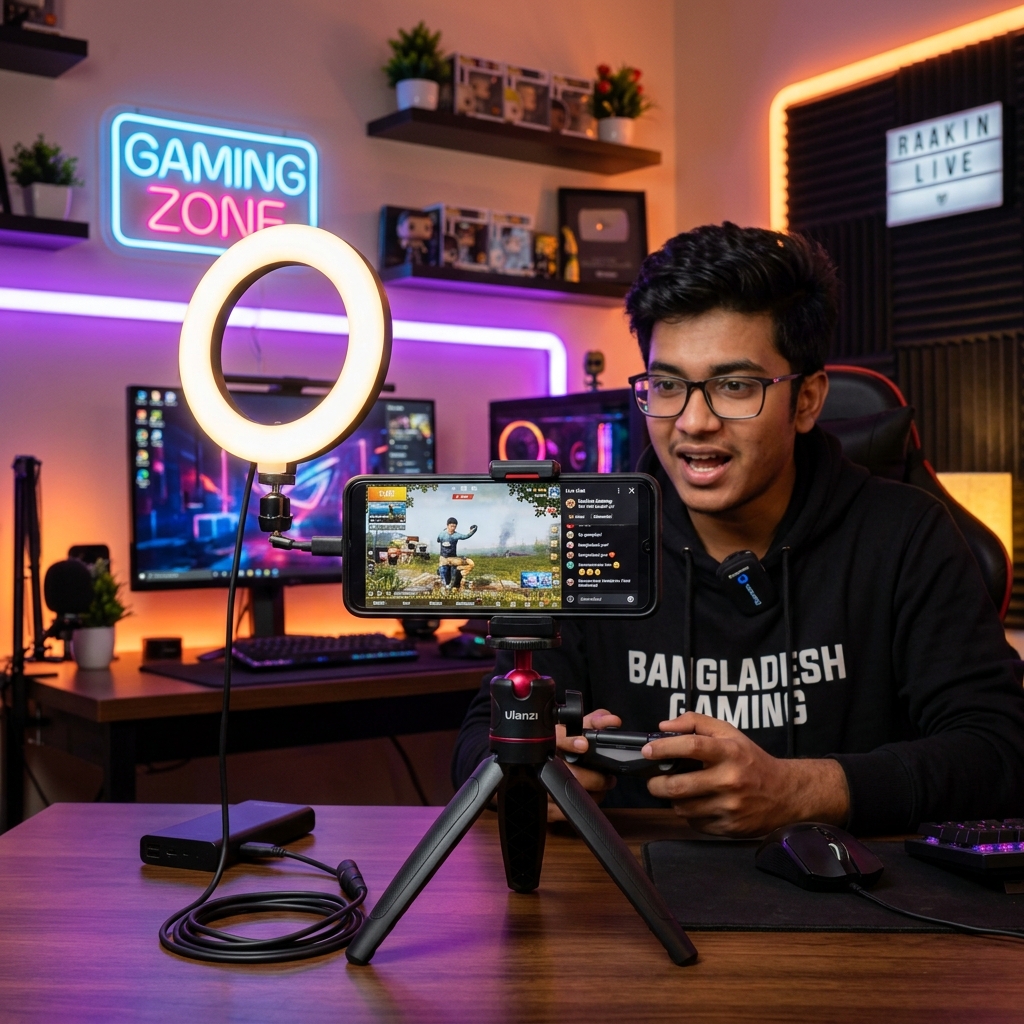
- Mobile Stand or Tripod — Holding your phone produces shaky footage. An affordable tripod costing ৳300–৳500 is all you need.
- Streaming App — We cover the best options in the next section.
Step 1: Choose the Right Streaming App
For beginners, the simplest path is going live directly through native apps—Facebook's Live button, YouTube's Go Live feature, or TikTok LIVE. They require zero extra setup.
However, if you want a professional touch, use a dedicated third-party app. Streamlabs Mobile and PRISM Live Studio are both free, offering overlays, alert boxes, chat widgets, and multistreaming support. PRISM Live Studio is especially popular among Bangladeshi creators because it runs smoothly even on budget devices and features an intuitive interface.
Set Up Your First Stream with PRISM (in 5 Minutes)
- Install the app and log in with your Facebook or YouTube account.
- Set your video resolution to 720p and frame rate to 30fps (avoid 1080p initially to save bandwidth and prevent lag).
- Set your bitrate between 4000 and 6000 kbps.
- Write an engaging title and upload an eye-catching thumbnail—viewers see this first before clicking.
- Before hitting "Go Live," run a 1-minute test stream (with privacy set to "Only Me") to verify both audio and video quality.
Step 2: Mobile Game Streaming Setup (Free Fire / PUBG Mobile)
The most common question mobile gamers ask is: how do I share my gameplay screen with viewers? There are two primary methods. The simple method: play the game on your phone and stream simultaneously using the screen-capture source in Streamlabs Mobile or PRISM. A mid-range smartphone can handle this comfortably.
The second method is slightly advanced: mirror your phone screen to a PC and broadcast via OBS Studio. This gives you full desktop power—custom overlays, multiple scenes, alerts, and browser sources. It's a fantastic solution for creators who own a PC without a dedicated high-end GPU.
- Balance game audio and microphone levels carefully—make sure your voice isn't drowned out by sound effects.
- Turn on "Do Not Disturb" mode; unexpected calls and notifications will instantly disrupt your live broadcast.
- Stream while charging and close all background apps to prevent frame drops and thermal throttling.
Step 3: Fine-Tune Audio and Lighting
An affordable ৳500 ring light can transform your video quality overnight. Position a ring light or natural window light in front of your face—lighting behind you creates harsh silhouettes. Sit against a clean wall or uncluttered backdrop for a neat presentation.
If you can't turn off ceiling fans, take advantage of built-in noise reduction tools—both PRISM and Streamlabs offer basic noise filters. Speak close to your microphone, and check in with your viewers occasionally to confirm audio levels.
Step 4: Monetize Your Live Stream
Alongside creating great content, open up monetization avenues right from day one. The easiest way to receive viewer support is through a live tipping system—fans send small donations to support their favorite creators, providing a predictable revenue stream. For creators in Bangladesh, Superchat BD makes this effortless: viewers can tip instantly via local mobile wallets like bKash and Nagad, while streamers enjoy hassle-free payouts.
Add your tipping link to the stream description and pin it in the live chat, politely reminding viewers during broadcasts. Setting small, transparent tipping goals (e.g., "৳500 towards a new microphone") encourages viewers to rally behind you.
Common Troubleshooting & Quick Fixes
- Stream keeps buffering or freezing: Lower resolution to 720p, reduce bitrate, and disconnect other heavy downloaders on your Wi-Fi network.
- Phone overheats: Remove phone cases, lower screen brightness, and sit near a tabletop fan during broadcasts.
- Voice echo or feedback: Use earphones instead of built-in speakers, and lower in-game sound volume.
- Battery drains rapidly: Always stream while plugged in, but avoid cheap counterfeit chargers—use high-quality certified chargers.
Conclusion
The beauty of mobile live streaming is simple: there are zero excuses to delay. Grab your phone, plug in a headset, download a free streaming app, and run your first test stream tonight. Your earliest broadcasts won't be flawless, and that's completely normal. Stream consistently, listen to audience feedback, and improve one element with every session—within three months, you won't even recognize your early streams. Best of luck!
Frequently Asked Questions
Can I live stream using a budget smartphone?
Yes, absolutely. A phone with 4 GB of RAM can easily handle 720p streaming. Simply close background apps, lower your stream resolution, and take breaks if the device heats up. Budget smartphones are ideal for just chatting/talking streams, while heavier 3D games benefit from a slightly more capable processor.
How much internet speed is required for mobile streaming?
You need a stable upload speed of at least 5–10 Mbps for reliable 720p streaming. Stability matters far more than raw speed—a consistent 8 Mbps line outperforms an unstable 20 Mbps connection with high jitter. Always run a speed test before hitting live.
Can I play and stream Free Fire or PUBG Mobile on the same phone?
Yes, provided you have a mid-range phone or better. Use the screen-capture feature in Streamlabs Mobile or PRISM to run the game and broadcast simultaneously. If you notice frame drops, lower the game's in-game graphic settings. For even higher production value, mirror your smartphone to a PC and broadcast via OBS Studio.
Can you really earn money from mobile live streaming?
Without a doubt. Viewer tips, brand sponsorships, and platform bonuses are fully accessible to mobile creators. By signing up on Superchat BD and placing your tipping link on stream, viewers can support you directly with domestic payment methods. Consistent broadcasts and active community engagement are the real keys to sustainable creator earnings.